> ## Documentation Index
> Fetch the complete documentation index at: https://docs.framelink.ai/llms.txt
> Use this file to discover all available pages before exploring further.
# Troubleshooting
> Troubleshooting guide for common issues with the Framelink MCP for Figma.
Fixes for the most common errors when running Framelink MCP for Figma. If your problem isn't listed here, ask in our [Discord server](https://discord.gg/MeE3UEjdGN) or [open an issue on GitHub](https://github.com/GLips/Figma-Context-MCP/issues).
## Find your error
Match what you see to the section that fixes it.
| What you see | Go to |
| - | - |
| `fetch failed`, `ECONNRESET`, or `Connection was reset` | [Network proxy and connection errors](#network-proxy-and-connection-errors) |
| `Cannot find module 'xxxxx'` | [Cannot find module](#cannot-find-module) |
| 403 Forbidden with `"err":"Invalid scope(s): ..."` | [Invalid scope(s)](#invalid-scopes--) |
| 403 Forbidden with `"err":"Invalid token"` | [Invalid token](#invalid-token) |
| 403 Forbidden with `"err":"Token expired"` | [Token expired](#token-expired) |
| 403 Forbidden with `"err":"File not exportable"` | [File not exportable](#file-not-exportable) |
| 403 Forbidden with any other body, or an HTML page | [Other causes](#other-causes) |
| `429`, `Too Many Requests`, or `Figma API rate limit hit` | [429 Too Many Requests](#429-too-many-requests) |
| Claude Desktop runs the server with the wrong Node.js version | [Claude Desktop: wrong Node version](#claude-desktop-wrong-node-version) |
## Network proxy and connection errors
If you see errors like `fetch failed`, `ECONNRESET`, or `Connection was reset`, your network likely requires outbound traffic to go through a proxy server. This is common on corporate networks, university campuses, and other managed environments.
### Add the `--proxy` flag
Ask your IT department for your proxy URL, then add `--proxy` to your MCP server configuration:
```json MCP client configuration theme={null}
{
"mcpServers": {
"Framelink_Figma_MCP": {
"command": "npx",
"args": [
"-y",
"figma-developer-mcp",
"--figma-api-key=YOUR-KEY",
"--proxy=http://your-proxy:8080",
"--stdio"
]
}
}
}
```
Alternatively, you can set the `FIGMA_PROXY` environment variable instead.
### Standard proxy environment variables
The server also automatically respects the standard `HTTP_PROXY`, `HTTPS_PROXY`, and `NO_PROXY` environment variables. If your system already has these set and your MCP client propagates them to child processes, proxy support should work without any additional configuration.
### Bypassing a misbehaving proxy
If you have a proxy set in your environment (from a VPN client, old dev tooling, or inherited shell config) that is rejecting requests to `api.figma.com` specifically, you have two options:
* Add `api.figma.com` to the `NO_PROXY` environment variable: `NO_PROXY=api.figma.com`. This is the standard convention and also respected by curl, git, npm, and most other tools.
* Pass `--proxy=none` to the server (in place of the `--proxy=...` line in the config above). This ignores `HTTP_PROXY`/`HTTPS_PROXY` entirely and connects directly. Useful when modifying environment variables is awkward — e.g. the proxy is set at the system level or inherited from a parent process.
## Cannot find module
If you encounter an error like `Cannot find module 'xxxxx'`, it means that something went wrong with installation of the MCP server.
To fix this, close your client and try running the following command:
```bash theme={null}
npx clear-npx-cache
```
Then open your client again. If the issue persists, please join our [Discord server](https://discord.gg/MeE3UEjdGN) or [leave an issue on Github](https://github.com/GLips/Figma-Context-MCP/issues) and we'll help you out.
## 403 Forbidden when accessing Figma files
A 403 from the Figma API can have several distinct causes, and each has a different fix. Figma names the cause in the `"err"` field of the response body. The server includes that body verbatim in its error message (as `Response body: ...`), so find the `err` string in the error your MCP client surfaced and match it to a section below.
```json Example response body theme={null}
{"status":403,"err":"Invalid scope(s): ..."}
```
### `"Invalid scope(s): ..."`
Your Personal Access Token was created without the scopes this MCP needs to read file content. Figma tokens are scoped, and tokens generated through the current UI do not always include the scopes we require by default.
**Fix:** Generate a new PAT at Figma Settings → Security → Personal access tokens ([navigation instructions](https://developers.figma.com/docs/rest-api/authentication/#access-tokens)) with at least these scopes selected, then update your MCP configuration:
* `file_content:read`
* `file_dev_resources:read`
The quickstart lists [the full set of scopes to enable](/quickstart#token-scopes), including the ones newer MCP features need. Granting all of them now saves you regenerating the token later.
### `"Invalid token"`
Figma did not recognize the token being sent. Common causes:
* The token was revoked or deleted from your Figma settings
* The token was mistyped, truncated, or picked up stray whitespace when copied into your MCP config
* The value being sent isn't actually a Figma token (e.g. a placeholder was left in place)
**Fix:** Generate a fresh PAT at Figma Settings → Security → Personal access tokens ([navigation instructions](https://developers.figma.com/docs/rest-api/authentication/#access-tokens)) with the scopes listed above and update your MCP configuration.
### `"Token expired"`
OAuth access tokens have a limited lifetime. Once expired, every request returns 403 until you obtain a new one.
**Fix:** Refresh your OAuth access token through your OAuth flow. If OAuth isn't essential for your setup, switching to a Personal Access Token avoids the refresh step — a PAT lasts until the expiration you chose when creating it.
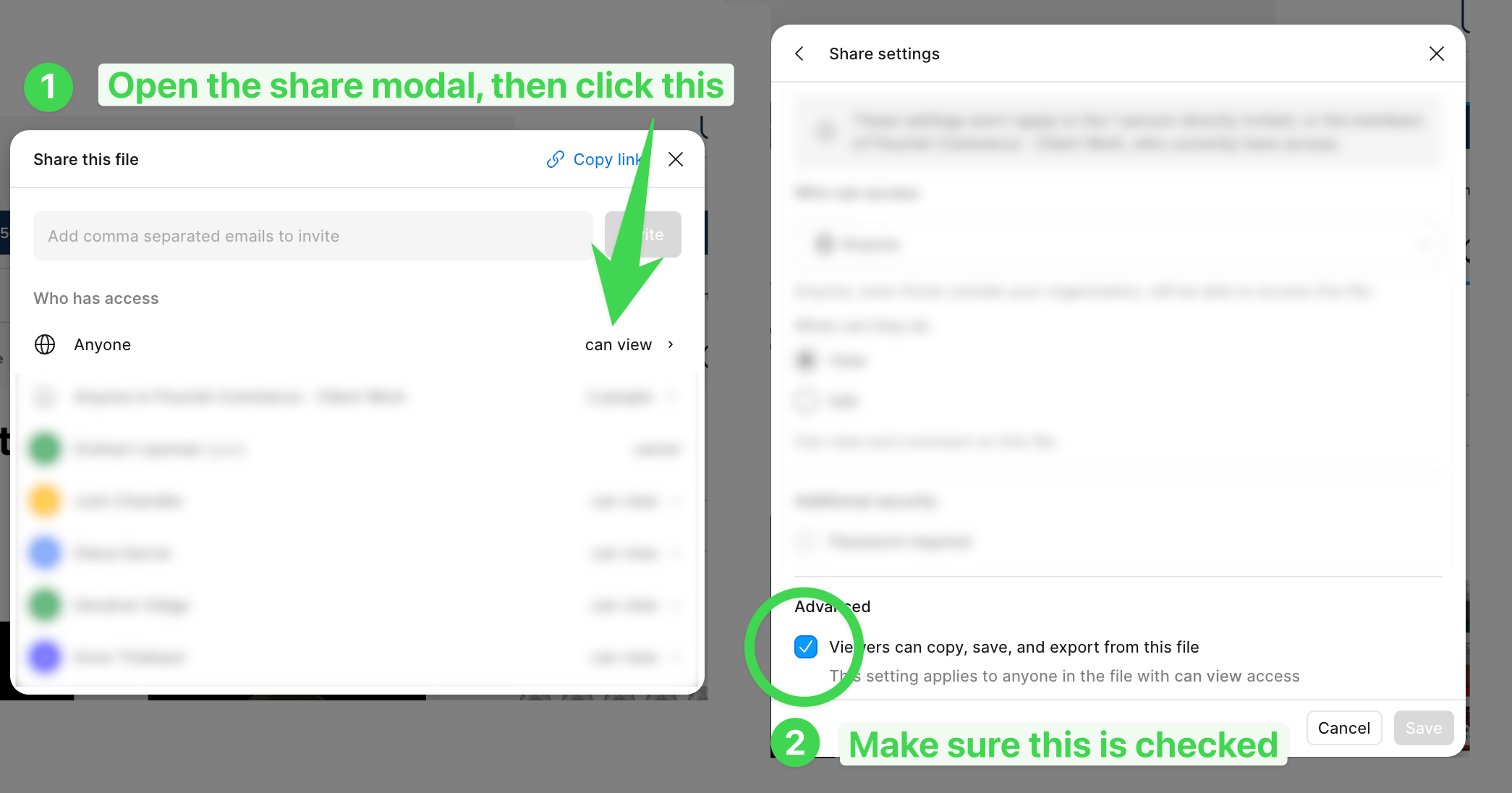
### `"File not exportable"`
The file's share settings disallow copying, sharing, and exporting. The Figma API honors these settings.
**Fix:** If you own the file, open it in Figma, click **Share**, and [allow viewers to copy, share, and export](https://help.figma.com/hc/en-us/articles/360040045574-Restrict-copying-and-sharing-on-files). If you don't own it, ask the owner to update the setting or duplicate the file into your own workspace.
 ### Other causes
If the error body doesn't match one of the above:
* **File access** — The file must be owned by the account associated with your token, or explicitly shared with that account. For team/org files, the token's account must belong to the right team.
* **HTTP proxy or firewall** — A proxy or intermediary can return its own 403 before the request reaches Figma. If the response body doesn't look like Figma's usual JSON (e.g. HTML, a third-party vendor name, "Access denied" text), an intermediary is likely the cause. See [the network proxy section](#network-proxy-and-connection-errors) for how to bypass a misbehaving proxy.
## 429 Too Many Requests
If you encounter a `429: Too Many Requests` error, it means you have exceeded the Figma API rate limits. There is no rate limiting built into Framelink MCP for Figma itself; these limits come directly from Figma.
The server's error message passes along what Figma reports: how many seconds to wait before retrying, whether your seat type (Viewer or Collaborator) has a lower limit, whether the plan is Starter or Student, and an upgrade link when Figma provides one.
There are a few common causes and solutions for this issue.
### Upgrade to a Paid Plan
Your rate limits depend on your Figma plan:
* **Free Plan**: Limited to approximately 6 requests per month.
* **Any Paid Plan (including Dev Seats)**: Starts at 10 requests per minute for the endpoints used by Framelink.
For more details, see [Figma's Rate Limit documentation](https://developers.figma.com/docs/rest-api/rate-limits/).
### Check File Ownership
Rate limits are determined by the **file owner's plan** in addition to your account's plan.
* If you are accessing a file in a Starter plan team/project, you will be subject to Starter limits (very low).
* **Solution**: Duplicate the file into your own paid workspace/team. Your paid plan limits will then apply to the copy.
### Wait for API Limits to Update
If you recently upgraded to a paid plan, there might be a delay before the API limits are updated. Some users report this can take some time to propagate.
## Claude Desktop: wrong Node version
If you use a version manager like NVM to manage your Node.js version, you may run into an issue where Claude Desktop ends up using the wrong version of Node.js.
To fix this, you can create a special version of `npx` for Claude Desktop to use that uses the right version of Node.js.
```bash /usr/local/bin/npx-for-claude theme={null}
#!/bin/zsh
# You may need to update this path to match your shell. This line is meant
# to load the file that sets the path to the Node.js version you want.
source ~/.zshrc
exec npx "$@"
```
Then run `chmod +x /usr/local/bin/npx-for-claude` to make it executable. Update your configuration in Claude Desktop to use this new `npx` command instead of the default one.
```json Claude Desktop configuration theme={null}
{
"mcpServers": {
"Framelink_Figma_MCP": {
"command": "npx-for-claude",
"args": [
"-y",
"figma-developer-mcp",
"--figma-api-key=YOUR-KEY",
"--stdio"
]
}
}
}
```
This documentation is built and hosted on [Mintlify](https://mintlify.com), a developer documentation platform.
### Other causes
If the error body doesn't match one of the above:
* **File access** — The file must be owned by the account associated with your token, or explicitly shared with that account. For team/org files, the token's account must belong to the right team.
* **HTTP proxy or firewall** — A proxy or intermediary can return its own 403 before the request reaches Figma. If the response body doesn't look like Figma's usual JSON (e.g. HTML, a third-party vendor name, "Access denied" text), an intermediary is likely the cause. See [the network proxy section](#network-proxy-and-connection-errors) for how to bypass a misbehaving proxy.
## 429 Too Many Requests
If you encounter a `429: Too Many Requests` error, it means you have exceeded the Figma API rate limits. There is no rate limiting built into Framelink MCP for Figma itself; these limits come directly from Figma.
The server's error message passes along what Figma reports: how many seconds to wait before retrying, whether your seat type (Viewer or Collaborator) has a lower limit, whether the plan is Starter or Student, and an upgrade link when Figma provides one.
There are a few common causes and solutions for this issue.
### Upgrade to a Paid Plan
Your rate limits depend on your Figma plan:
* **Free Plan**: Limited to approximately 6 requests per month.
* **Any Paid Plan (including Dev Seats)**: Starts at 10 requests per minute for the endpoints used by Framelink.
For more details, see [Figma's Rate Limit documentation](https://developers.figma.com/docs/rest-api/rate-limits/).
### Check File Ownership
Rate limits are determined by the **file owner's plan** in addition to your account's plan.
* If you are accessing a file in a Starter plan team/project, you will be subject to Starter limits (very low).
* **Solution**: Duplicate the file into your own paid workspace/team. Your paid plan limits will then apply to the copy.
### Wait for API Limits to Update
If you recently upgraded to a paid plan, there might be a delay before the API limits are updated. Some users report this can take some time to propagate.
## Claude Desktop: wrong Node version
If you use a version manager like NVM to manage your Node.js version, you may run into an issue where Claude Desktop ends up using the wrong version of Node.js.
To fix this, you can create a special version of `npx` for Claude Desktop to use that uses the right version of Node.js.
```bash /usr/local/bin/npx-for-claude theme={null}
#!/bin/zsh
# You may need to update this path to match your shell. This line is meant
# to load the file that sets the path to the Node.js version you want.
source ~/.zshrc
exec npx "$@"
```
Then run `chmod +x /usr/local/bin/npx-for-claude` to make it executable. Update your configuration in Claude Desktop to use this new `npx` command instead of the default one.
```json Claude Desktop configuration theme={null}
{
"mcpServers": {
"Framelink_Figma_MCP": {
"command": "npx-for-claude",
"args": [
"-y",
"figma-developer-mcp",
"--figma-api-key=YOUR-KEY",
"--stdio"
]
}
}
}
```
This documentation is built and hosted on [Mintlify](https://mintlify.com), a developer documentation platform.